See
NOT RED
Read the call on the stadium board. The writing changes colour and slides about to throw you off. Ignore it.
Explore the game
How a call works, what you'll see on screen, and every mode from a quick go to a proper session.
How it works
Every call is a tiny test of attention, logic and speed, and you answer it with your feet. The rules are simple. Your brain will still try to trick you.
Read the call on the stadium board. The writing changes colour and slides about to throw you off. Ignore it.
Two NOTs cancel out. Colours point at the goal wearing that kit, and the kits keep swapping.
Step on the arrow before the clock runs out. Your feet answer, not your fingers. Get it right and the net bulges. Get it wrong and it's full time, to a groan from the crowd.
Mat setup
The dance mat is how StepOver trains your feet. Here’s how to get it plugged in, set up and ready to play.
Look for a dance mat that says USB or PC on the box. Thin foam mats are cheapest; thicker foam or metal mats grip better and last longer. Older PlayStation 2 mats need a cheap PS2-to-USB adapter. See mat ideas
Clear about 2 × 2 metres of flat floor, away from furniture, stairs and pets. Put the screen about 2 metres in front of you at eye level. Stop the mat sliding with a rug grip, and play in socks or bare feet on soft mats.
Plug the mat into a laptop or desktop and open stepover.uk/play in Chrome, Edge, Firefox or Safari. Then step on any arrow: browsers only notice a mat once it’s been pressed. The bar under the pitch changes from “Keyboard” to “Controllers: 1”.
The first time StepOver sees your mat, setup opens straight away. The mat won’t control anything until it’s done. Step off the mat, press START (the small button at the top) for pause, then step on up, down, left and right when asked.
StepOver asks for the four arrows again in a random order. If any arrow comes back wrong, it redoes them, so your mat is always read correctly. No START button? Skip it and pause with the on-screen button, P or Esc. You can redo setup any time in Settings → Dance mats.
Plug in another mat and choose Set up · Player 2. No second mat? Player 1 can use W A S D on the keyboard and Player 2 the arrow keys.
| Where | ▲ ▼ | ▶ | ◀ | START |
|---|---|---|---|---|
| Menus | Move up and down | Choose | Back | Nothing |
| In a game | Answer the call | Pause | ||
| Paused | ▼ Restart | Resume | Quit to menu | Resume |
| Full time | Nothing | Play again | Menu | Nothing |
The keyboard arrows do exactly the same, with P or Esc to pause.
Step on an arrow first: browsers hide mats until they’re pressed. If that doesn’t work, unplug the mat, plug it into a different USB port (not an unpowered hub) and refresh the page. Close other programs that might be using the mat, like Steam or StepMania.
Run Settings → Dance mats → Set up again: step off the mat first, then step on each arrow when asked and pass the check. If an arrow never registers, the mat itself may be damaged: try it on another computer.
Flatten the mat and check there are no folds or objects under it. Soft mats sometimes need a few minutes to settle after being rolled up. Then run the setup again.
If arrows behave strangely, press that button once to switch mode, then run the setup again. Most mats work best in their default (digital) mode.
StepOver works best on a laptop or desktop with a USB mat. Some Android phones and tablets work with a USB-C (OTG) adapter. iPhones and iPads usually don’t recognise dance mats, but you can still play Classic with touch.
Usually, if your computer sees it as a game controller once it’s paired. Set it up the same way. If it disconnects, try a wired mat instead.
Still stuck? Email support@stepover.uk with the name of your mat and we’ll help.
Inside the game
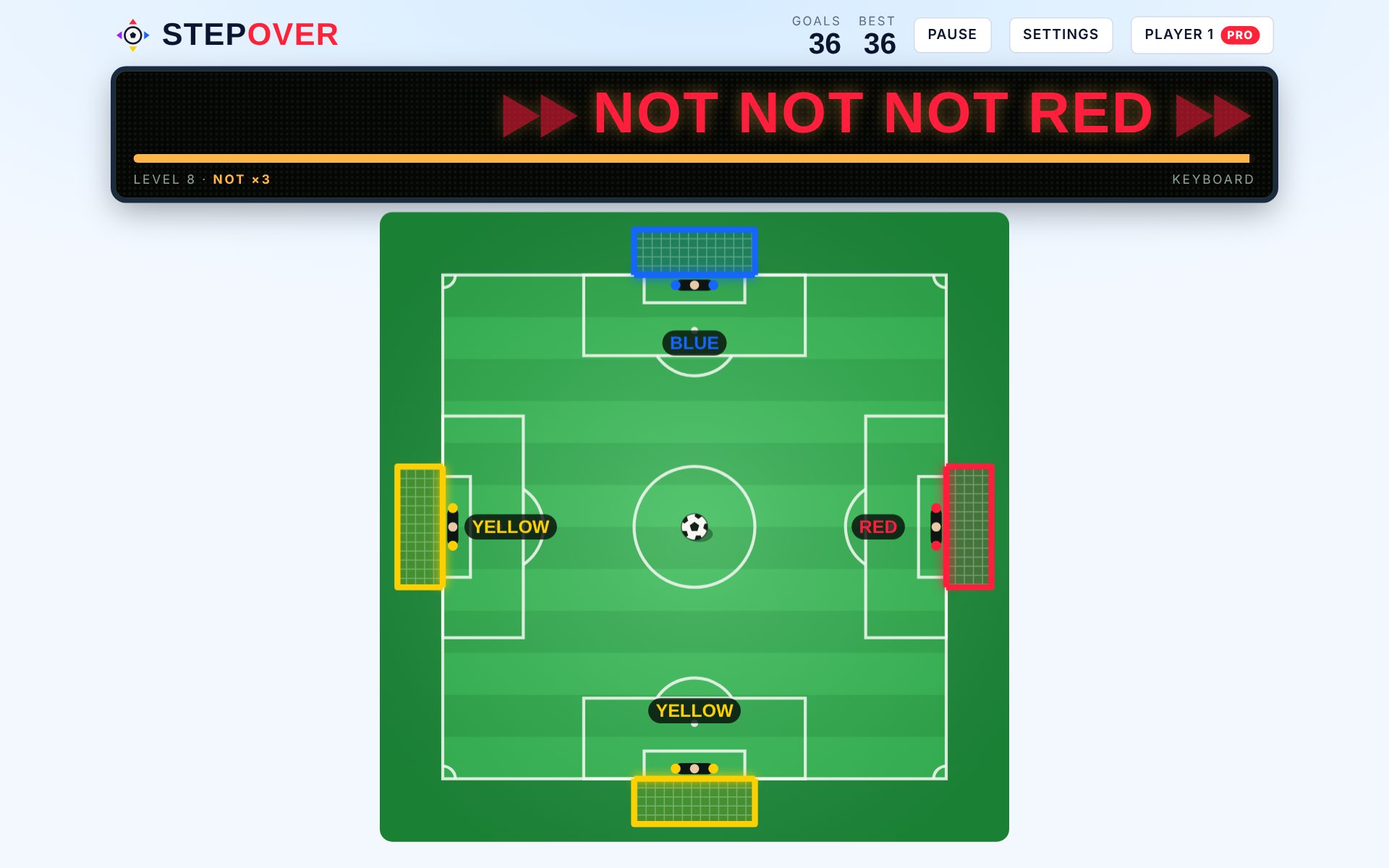
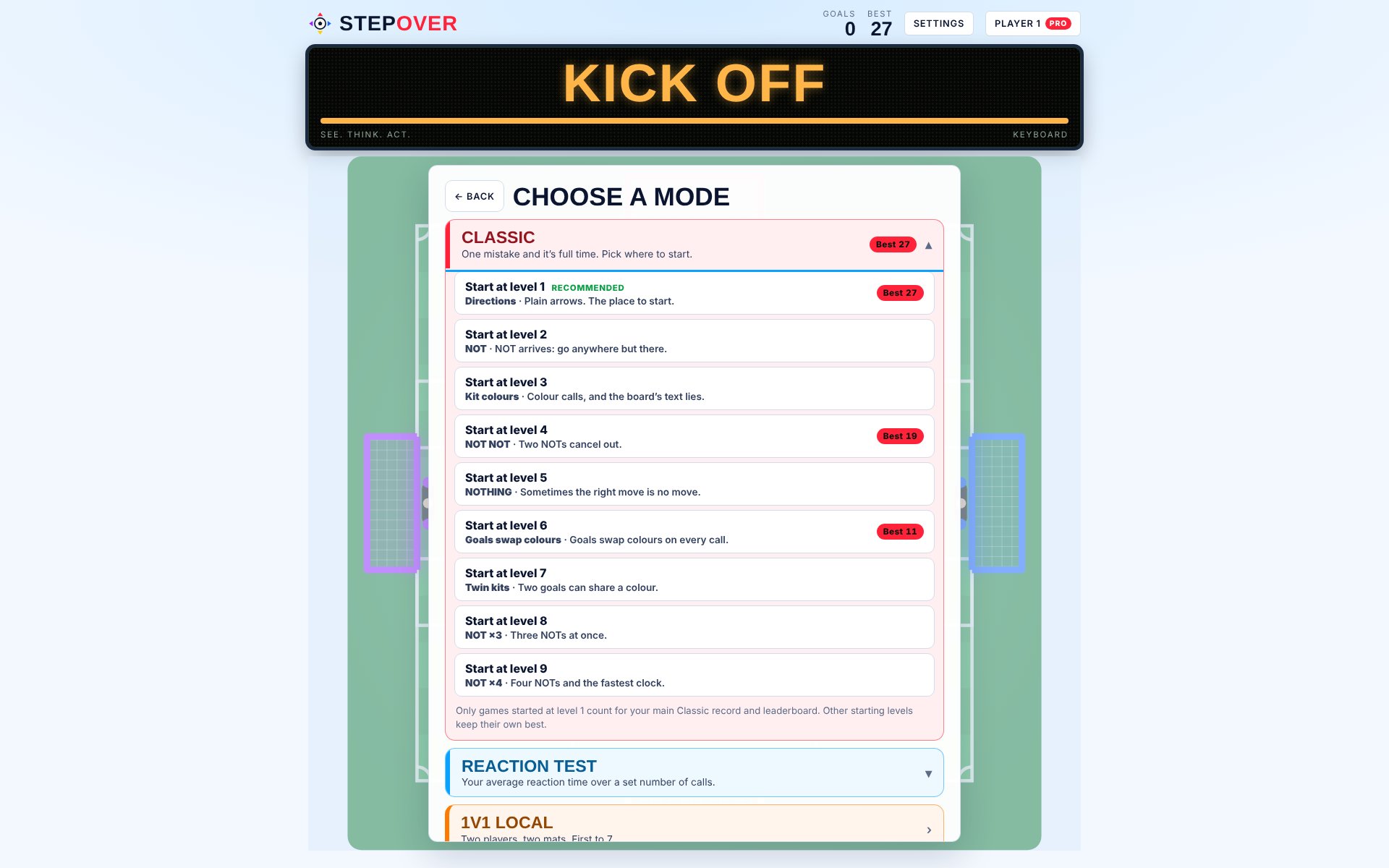
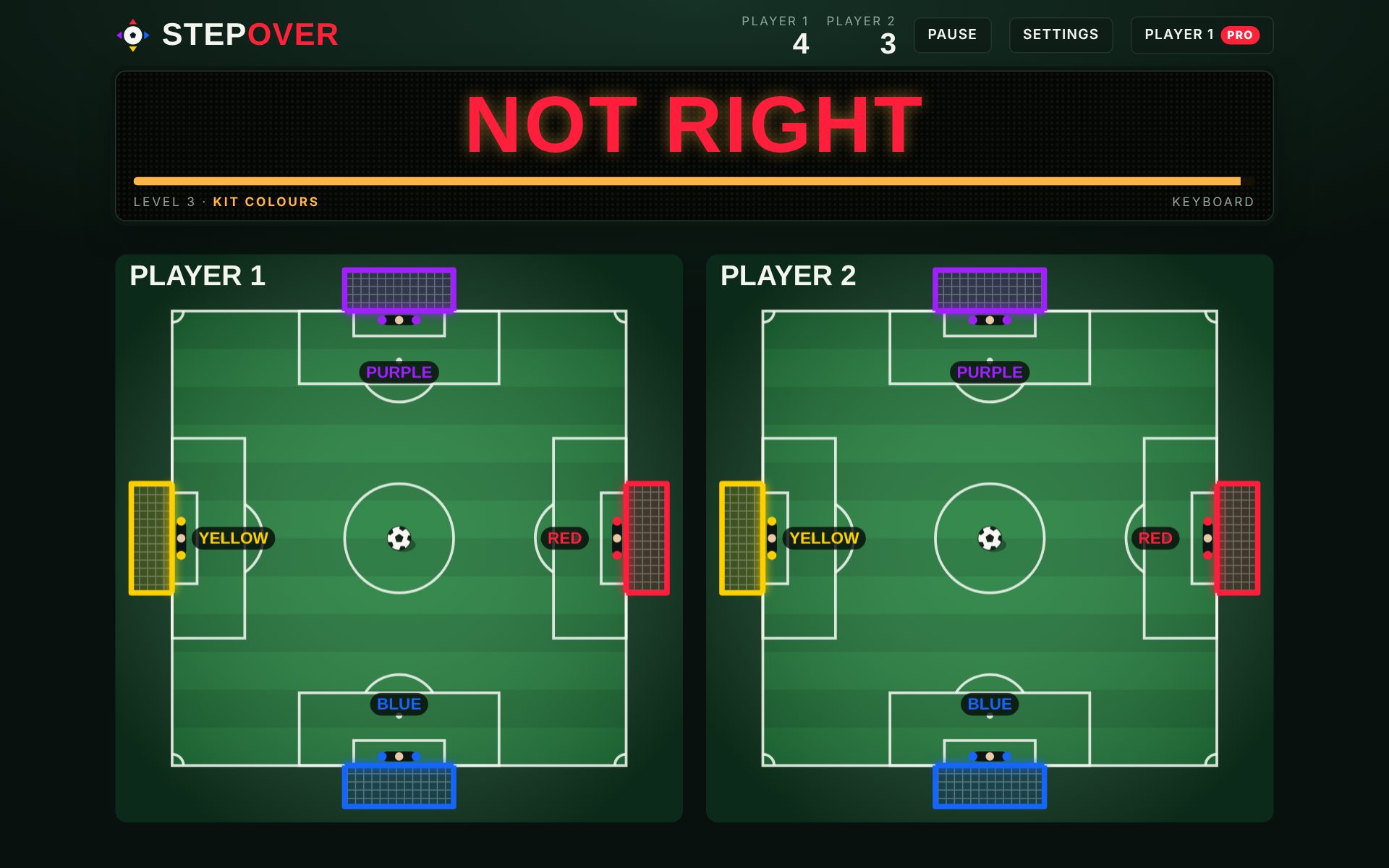
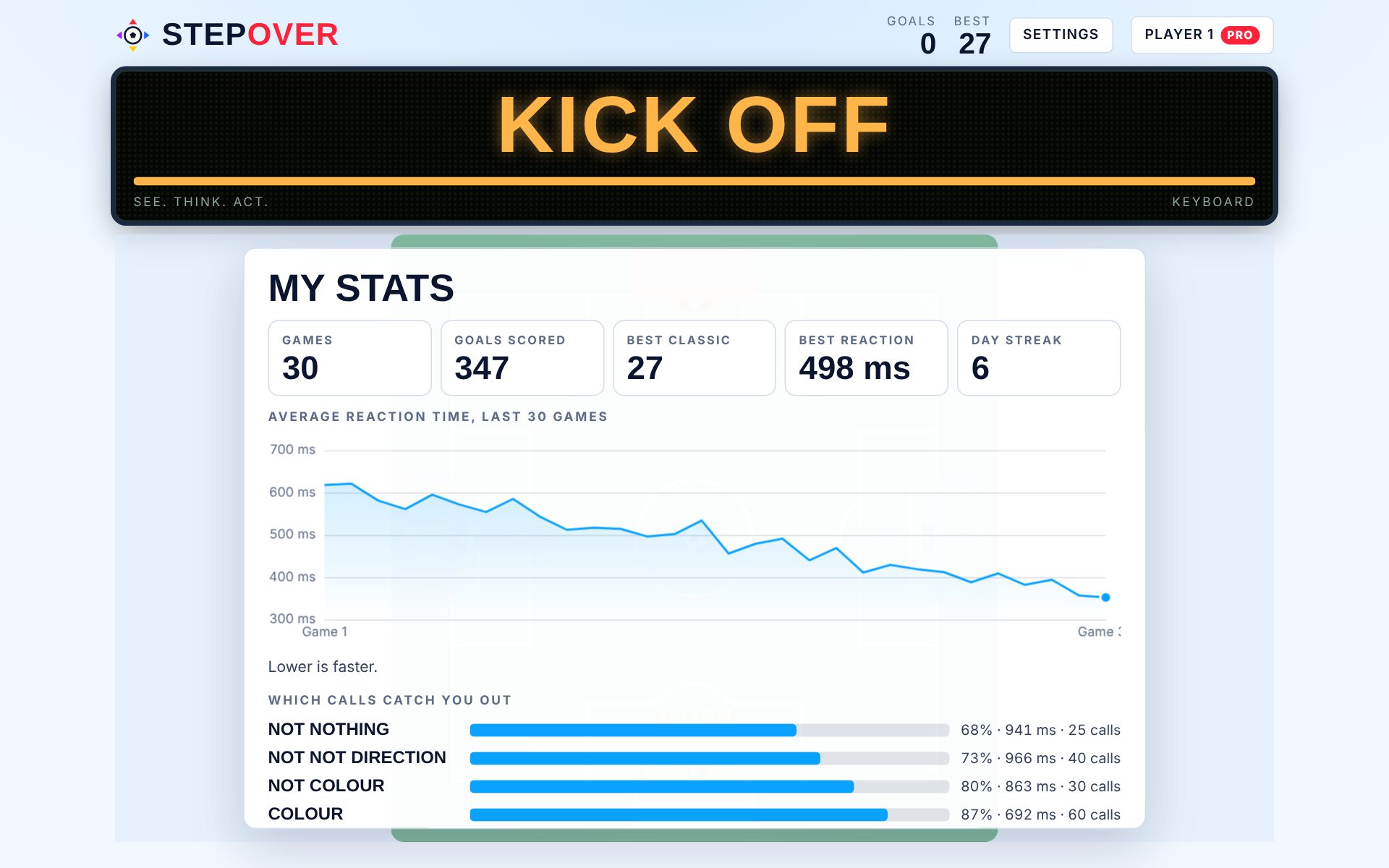
Plug in a USB mat, step on each arrow once to set it up, and you're playing with your feet. Add a second mat for 1v1.
Six languages, a colour-blind friendly kit option, light and dark looks, and four countdown speeds from Relaxed to Pro.
Modes
Step on the arrows instead of pressing keys. The full StepOver experience: real foot speed, balance and decisions under pressure.
10, 20 or 30 calls. Mistakes are counted but you keep going, so it's the best place to learn. Score how many you get right.
One mistake and it's full time. Nine starting levels, up to four NOTs, and a countdown that keeps getting shorter.
10, 20 or 30 calls. Get your average reaction time, accuracy and fastest answer.
Two players, two mats (or WASD and arrows). Results feed a league table for your mates.
Filter records by speed and date. Track your progress and the calls that trip you up.
Training plans built from your stats, and calls that target your weak spots.